On-Call
CPE uses VictorOps as the tool to manage team rotations and personal paging policies. To access VictorOps, use this link:
https://portal.victorops.com/client/solidfire
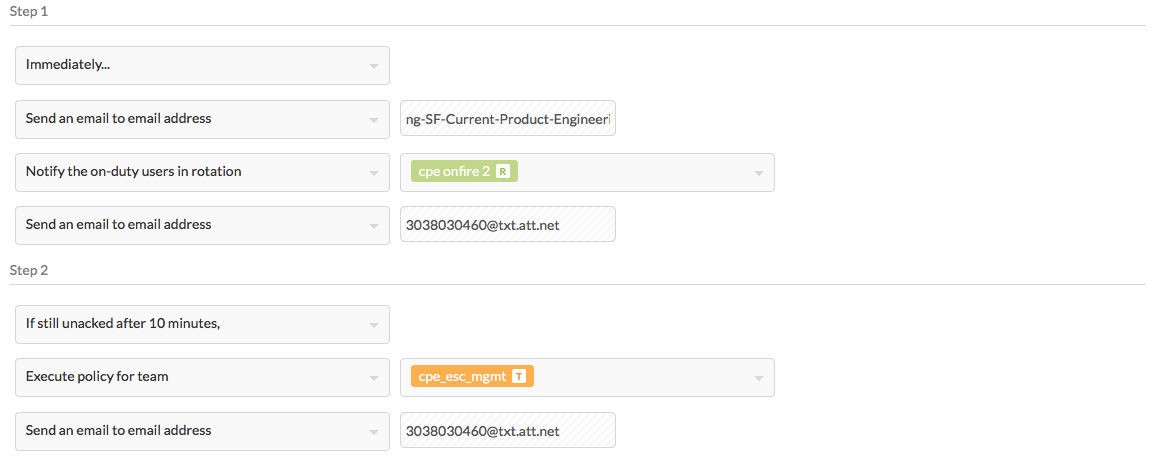
When a “CPE DU/DL/DC” ticket is created in JIRA, if the “call-out” checkbox is checked, VictorOps will trigger the escalation policy defined for the cpe_on_fire team.

This includes contacting the primary on-call person for the CPE team, the on-call manager and sending an email to the whole team. If the alert is not acknowledged within 10 minutes, then the secondary on-call person will be contacted. If the alert isn’t acknowledged within 10 minutes after reaching out to the secondary on-call person, then the on-call escalation manager will be contacted (again). The following picture shows the team policy as entered in VictorOps:
Export on-call calenders to from VictorOps and import to Outlook or Google
There are two on-call calenders in VictorOps; one for Engineer on-call (cpe-on-fire) and one for Manager on-call (cpe-esc-mgmt). You need to add both calendars to Outlook or Google.
To export a calendar from VictorOps, click the link below and save the ‘.ics’ file.
cpe-on-fire: https://portal.victorops.com/api/v1/org/solidfire/team/cpe_on_fire/calendar/C6DB2F688AAB498D9E812EADAF3C5924.ics
cpe-esc-mgmt: https://portal.victorops.com/api/v1/org/solidfire/team/cpe_esc_mgmt/calendar/8C6A4B0F1D741F8F795BBCE855F030C3.ics
To import the calendar to Google or Outlook, add a calendar from file and select the appropriate ‘.ics’ file.
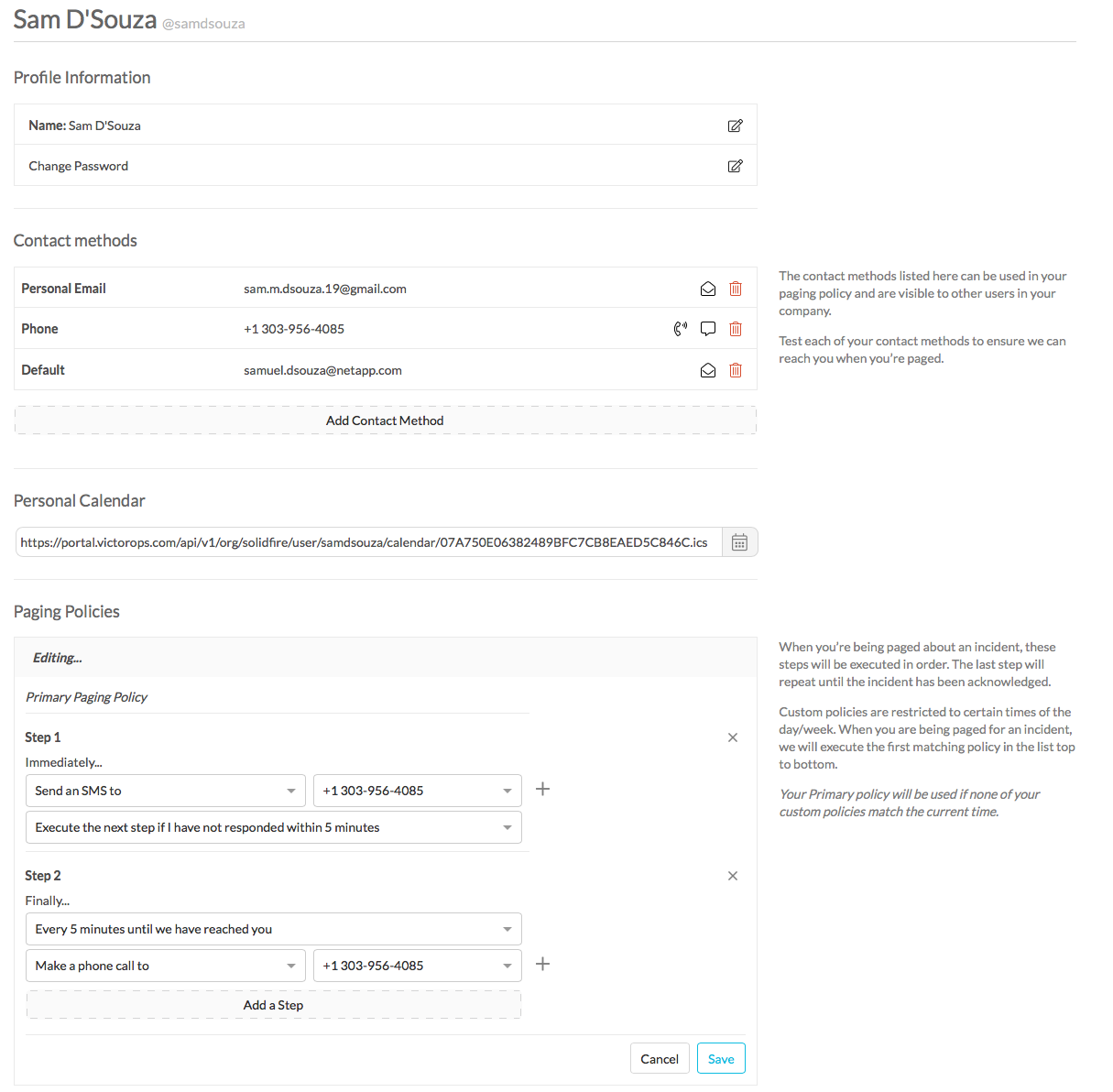
Enter Personal Paging Policy
- If you’re part of the rotation team you should enter your contact information and your paging policy which describes how VictorOps should contact you if needed. You can do this in the top right corner of VictorOps: @YourUserName -> Your Profile
If you Are on Call
- If you’re part of the rotation policy you’ll be on-call eventually. To find out when you’ll be on-call you can check the VictorOps team calendar, which can be found as a ‘.ics’ file here: https://portal.victorops.com/api/v1/org/solidfire/team/cpe_on_fire/calendar/C6DB2F688AAB498D9E812EADAF3C5924.ics
- To find who is currently On-Call now, navigate to VictorOps -> Settings -> Teams -> Select team cpe_on_fire -> Rotations

- There is a predetermined range of phone numbers that VictorOps will use to contact you. They can be found here: https://help.victorops.com/knowledge-base/victorops-phone-numbers/
- If you are called by VictorOps, acknowledge the alert by performing one of these actions:
- If contacted by phone, you can acknowledge the alert by pressing ‘4’.
- If contacted by SMS, you can acknowledge it by responding with the code that is provided in the SMS message.
- You can acknowledge the alert directly in the VictorOps app.
- You can acknowledge the alert by moving the corresponding CSD JIRA ticket from “in Queue” to “Fix in Progress”
- You can acknowledge the alert by assigning the CSD JIRA ticket to yourself.
- If you’re on-call you must acknowledge the alerts withing 20 minutes, and you must contact Support back within 30 minutes from the moment the CSD JIRA ticket was generated.
Getting Help From a CPE Escalation Manager via VictorOps or File a CPE Esc Mgmt Ticket
- https://victorops.com
- Login
- Timeline Tab
- Create Incident (this is in Blue on the right side in the Incidents section)
- Click on Send To -> Escalation Policies -> cpe_esc_mgmt
- Incident Description : your phone number
- Incident Body : webex, details, hipchat, etc.
Requesting a Scheduled Override (if you’re going to be out when you’re on call)
VictorOps allows to request an override when you’re unavailable the same time you’re on call. For this, you should go to Settings -> Scheduled Overrides -> Schedule an Override:
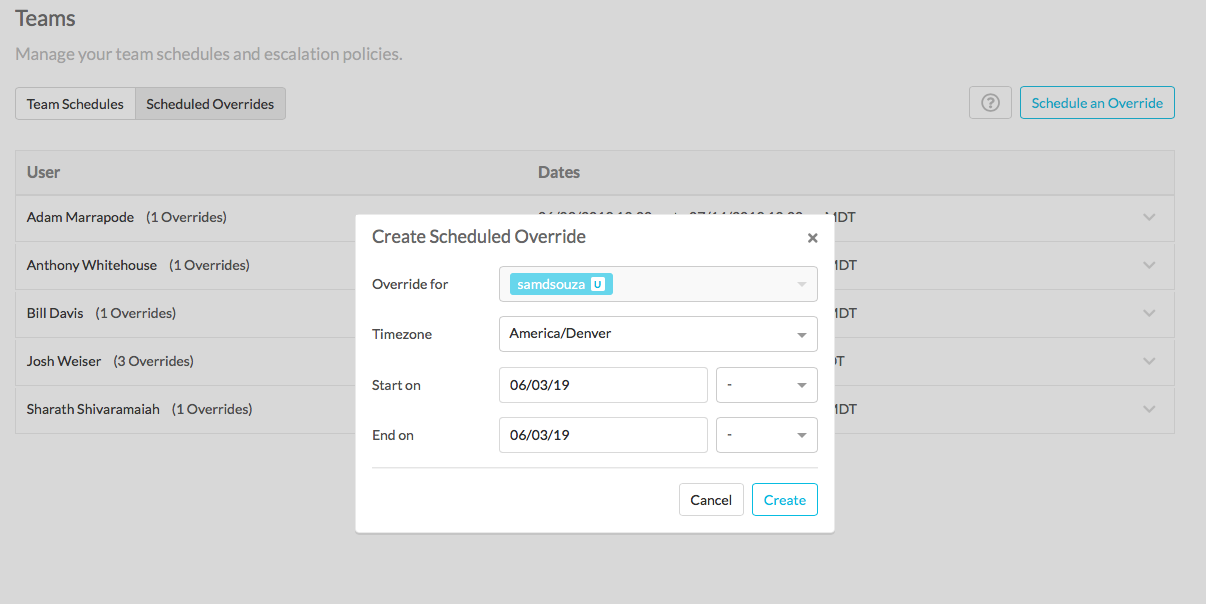
Select the user being overridden (that should normally be you!), start date and end data, and everyone would get a notification with the request.